
You Don't Need a New MacBook. You're Just Using It Wrong.
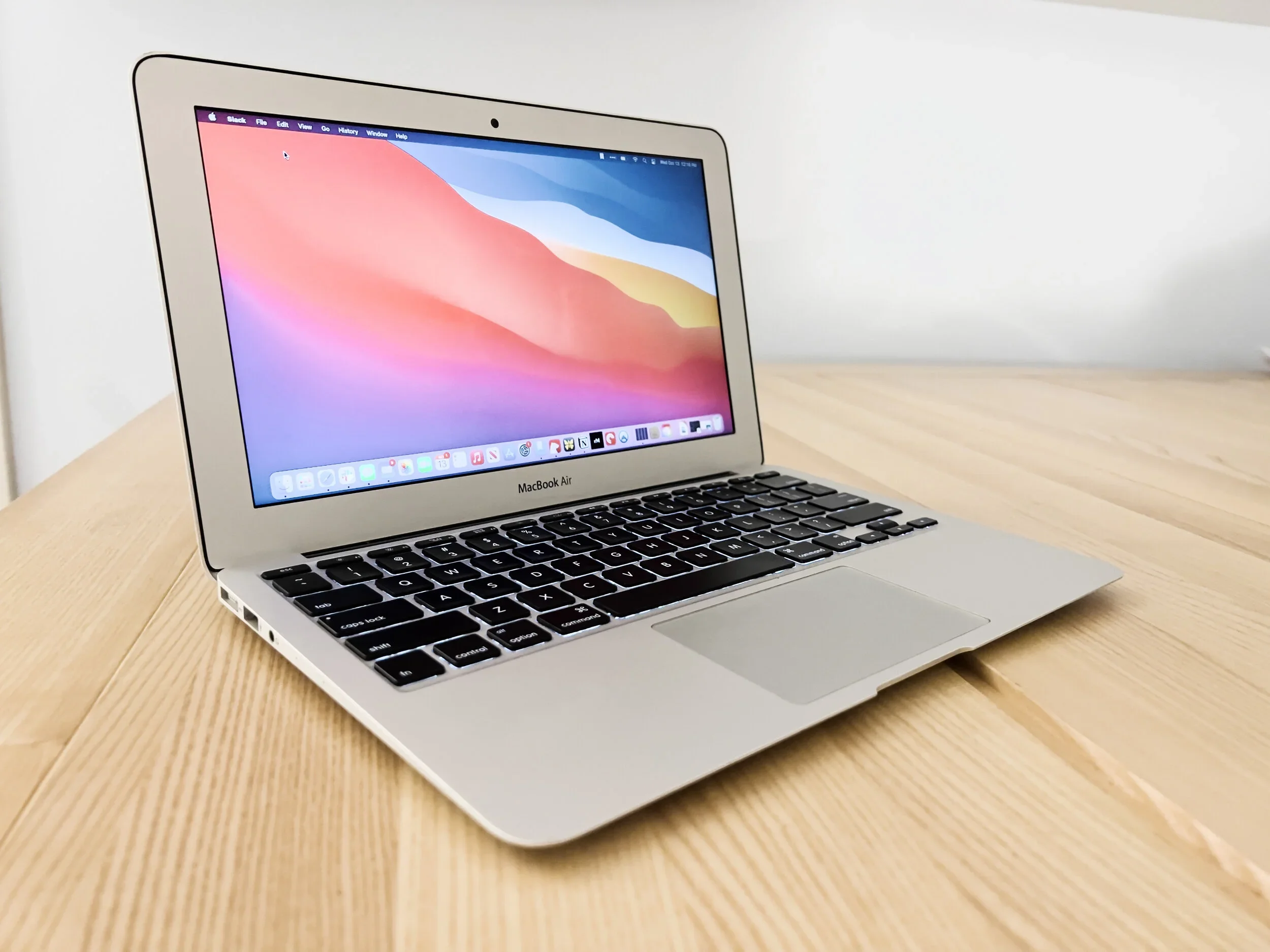
I say this with love, because I've been there more times than I'd like to admit.
Last week I looked up and had 17 programs running and more Chrome tabs open than I could count. Nothing was processing. The fan was going. I was convinced the machine was dying. It wasn't. It was just drowning. Sound familiar?
Before you spend $2,000 on a new laptop, spend ten minutes on this first.
1. Find out what's actually slowing it down
Open Activity Monitor. Hit Command + Space, type "Activity Monitor," hit enter.
Click the CPU tab and sort by percentage. Then click the Memory tab and sort by memory usage. Look at what's sitting at the top. Half of it is probably something you forgot was even running.
Close anything you don't need open right now. Uninstall apps that are constantly running in the background but that you never actually use. This one step alone can calm the fan down and make everything feel faster.
2. Stop apps from starting up every time you restart
Every app that launches automatically at startup is taking a slice of your machine before you've even opened anything you need.
Go to System Settings, then General, then Login Items. Under "Open at Login," remove anything you don't need immediately when you sit down to work. Under "Allow in the Background," turn off everything non-essential.
Your Mac should start lean. Not with your entire software history running in the background.
3. Clean up your desktop
I know. But hear me out.
macOS treats every single icon on your desktop as a live item that Finder has to keep track of. If your desktop looks like a filing cabinet exploded, your Mac is working harder than it needs to just to display it.
Move files into actual folders — Documents, Downloads, wherever they belong. Aim for as close to empty as you can get. A clean desktop is not just aesthetically better. It genuinely helps performance.
4. Get your browser under control
Chrome especially. It is essentially an operating system running inside your operating system, and it will consume as much memory as you let it.
I am guilty of this constantly. Tabs multiply without me noticing, and before long Chrome alone is eating through my RAM while everything else crawls.
Keep tabs under control — somewhere around 10 to 15 open at a time is reasonable. Remove extensions you installed once and never use. Clear your cache occasionally if it's gotten large.
If Chrome is consistently brutal, consider using Safari for general browsing and keeping Chrome only for specific tasks that need it. The difference in memory usage is real.
5. Free up disk space — and be honest about what's actually on there
A disk that's nearly full slows macOS down. Go to Apple menu, About This Mac, then Storage. What you find might surprise you.
One of the most common things we see when we start working with a family's photo library is duplicated files — sometimes the same photos living in three or four different folders. It happens gradually. Someone downloads a batch of photos, then downloads it again to a different location, then again for good measure. By the time we run a deduplication program to identify which version is the most current, the redundancy has gotten significant. The computer has been quietly carrying all of it.
This is especially common with families who get anxious about losing their photos. The instinct makes sense — back it up, back it up again, keep it everywhere. But downloading the same files repeatedly to multiple locations doesn't protect your memories. It clogs your machine and creates confusion about which version is actually the right one. One well-structured backup system does more than five panicked downloads. If you want to understand what a proper digital organization system actually looks like, this is a good place to start.
Look for old iPhone or iPad backups you no longer need, large apps you stopped using, and photo or video libraries that could live on an external drive or cloud storage. Keep at least 15 to 20 percent of your disk free if possible.
6. Turn off the visual effects
This one surprises people. All those smooth animations and transparency effects look nice, but they cost processing power — especially on older machines.
Go to System Settings, then Accessibility, then Display. Turn on Reduce Motion. Turn on Reduce Transparency. Small change, noticeable difference.
7. Restart your Mac. Actually restart it.
Macs are built to run for a long time without shutting down, but they benefit from a reset. Restart at least once a week.
And once a month, do a quick pass: clear the desktop, check your login items, and uninstall anything you've stopped using. Fifteen minutes. It keeps things from quietly accumulating again.
The machine is usually not the problem. What's running on it is.
Give your Mac room to breathe before you give Apple your credit card.