
7 Steps to Organizing Your Digital Photos and Videos
I've organized millions of digital photos and videos at this point. And the single most common mistake I see from people who've tried to do this themselves is starting in the wrong place.
They create folders before removing duplicates. They delete blurry photos before sorting by date. They try to tag people before the timeline even exists. Then they get frustrated and stop — because the system doesn't hold.
The order matters more than the tools. Here's the sequence I use at Picturli with every single client, and why each step has to come before the next one.
Step 1: Gather everything onto one drive
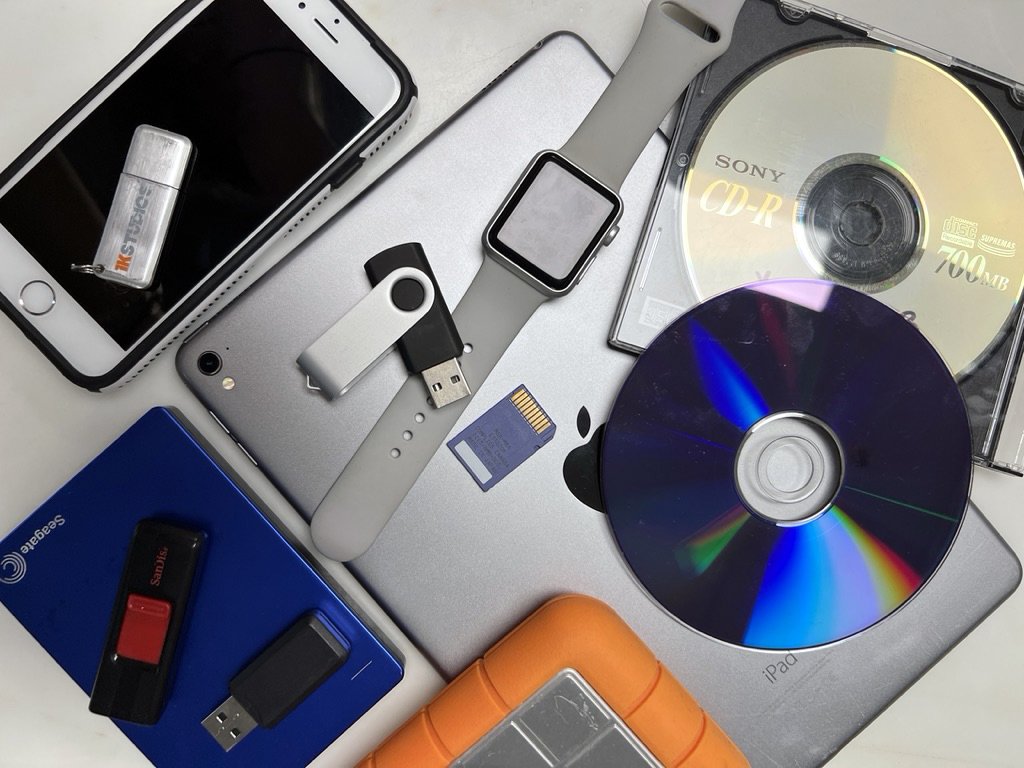
Before you touch a single file, consolidate. Pull photos and videos from every device you own: phones, tablets, old computers, cameras, memory cards. Download from every cloud service: iCloud, Google Photos, Amazon Photos, Dropbox, Shutterfly, Snapfish, Facebook. If you have old phones in a drawer, charge them now and get the photos off before the battery dies permanently.
Buy a 4TB external hard drive — or larger if you have a big collection — and move everything there. Create one folder and call it something simple like "Everything Unsorted." Don't organize yet. Just gather.
This is the step most people skip, and it's the reason most people end up doing the work twice. If you want to understand the full gather process, I go into detail in my post on how to do a complete family photo inventory.
Step 2: Remove duplicates
Before you sort a single file, remove the duplicates.
Most people have no idea how many they have. When I start a digital organization project, I typically find that 30 to 40 percent of a collection is duplicate files — sometimes more. Photos copied from a phone to a computer to an external drive to iCloud and back again, accumulating copies at every step.
If you try to organize before deduplicating, you'll sort a photo into a folder only to find the same photo somewhere else later. You'll build a library with the same redundancies you started with, just organized ones.
For a DIY approach, Gemini (Mac) and dupeGuru (cross-platform) are both solid. Let the software find the matches and review them before deleting — don't trust any tool to auto-delete without your review.
For iPhone users, go to Photos → Utilities → Duplicates. iOS will show you exact and near-duplicate photos and let you merge them safely.
Step 3: Sort everything chronologically
Once duplicates are gone, sort everything by date.
Date first. Always. Before events, before people, before anything else. Chronological order is the foundation that everything else gets built on. What counts as a "vacation" folder or a "kids" folder shifts over time. The date a photo was taken never changes.
The key is sorting by date taken — not date modified or date added, which can be inaccurate depending on when files were copied or transferred.
Step 4: Cull what doesn't belong
Now that you're working with a deduplicated, chronologically sorted library, go through and remove what shouldn't be there.
The blurry shots. The accidentals — photos taken by mistake when a phone was in a pocket. The seventeen nearly identical frames from the same moment. The screenshots that have accumulated over years.
Be decisive. A smaller library is a better library. Every photo you keep is a photo someone has to scroll past when they're looking for something specific. The goal isn't to preserve everything — it's to preserve what matters.
This step comes after sorting because you need the chronological context to make good culling decisions. A blurry photo from a child's first birthday may be worth keeping. A blurry photo of a random Tuesday is not. Without the context, you can't always tell which is which.
Step 5: Tag with metadata
Now you're working with a clean, sorted, culled library. This is when tagging becomes efficient.
Embed people, places, and events directly into each file using industry-standard metadata. This is what makes your archive searchable years from now, no matter what platform you use or where the files live. A photo tagged with your daughter's name, your hometown, and "first birthday" can be found in seconds on any device.
This is also where a family tree pays off. If you haven't built one yet, do it before this step. I recommend familyecho.com — it's free and easy to share with family members who can fill in gaps. Trying to tag photos without a family tree reference is how names get misspelled, people get misidentified, and the system breaks down later.
Step 6: Rename every file
Every file gets a consistent, descriptive name.
The format I use and recommend: YYYY-MM-DD_description_001.jpg
Example: 2019-06-15_emma-graduation_001.jpg
Every filename becomes unique, chronologically sortable, and self-explanatory, to you and to anyone else who ever accesses the library. No more IMG_4872 in a folder called New Folder (3).
This step comes last in the naming process because the name should reflect the organized, tagged, final version of the photo — not the chaotic original state.
Step 7: Back it up
An organized library that isn't backed up is still at risk.
Use the 3-2-1 method: 3 copies of your data, on 2 different types of media, with 1 copy stored offsite. A copy on your computer and a copy on an external drive sitting next to your computer isn't a backup strategy — one flood, one fire, one theft takes both.
For cloud backup, we use and recommend Backblaze for both personal and business computers. It's reliable, low cost, and runs automatically in the background. For Mac users, Time Machine is an excellent local backup solution.
I go into much more detail on backup strategy, including why cloud storage alone isn't enough, in my post on the 3-2-1 backup method and why your photos may not survive the next decade.
What this looks like when it's done
A properly organized digital photo library is searchable in seconds. You type a name and every photo of that person comes up. You search a year and see your life in chronological order. You look for "Christmas 2014" and find it instantly — because the metadata and the filename both say exactly that.
That's what I deliver to every client. And it's achievable whether you do it yourself or work with us.
If you have physical photos as well, the process looks completely different. I cover that in my post on how to sort a lifetime of printed photos.
What we do at Picturli
At our studio we handle digital collections of every size -- from a few thousand files to several million. We've seen collections with 70 percent duplicates. We've recovered metadata from files that looked completely unorganized. We've reunited photos with their correct dates after years of incorrect timestamps.
If your digital library feels too far gone to tackle yourself, or if you simply don't want to spend the time, that's exactly what we're here for.